

Business Central WooCommerce Integration: The Complete Guide

Business central woocommerce integration links your WooCommerce store with Microsoft Dynamics 365 Business Central so orders, stock levels, pricing, and customer records update automatically in both systems. A dedicated connector removes manual data entry, syncing information in real time or on a set schedule, so your storefront and your ERP always show the same numbers.
Somewhere in a warehouse right now, someone is checking a WooCommerce order against a Business Central inventory count by hand. It happens at growing ecommerce companies more often than you would think. WooCommerce handles the storefront well. Business Central handles finance, inventory, and operations well. The trouble shows up in between: when the two do not talk to each other, someone has to.
That gap costs time and, eventually, money. Orders get keyed in twice. Stock counts drift out of sync. A customer gets an invoice that does not match what they saw on the site. None of this is a WooCommerce problem or a Business Central problem on its own. It is a connection problem, and it is exactly what a business central woocommerce integration is built to solve.
This guide covers what the integration actually does, how it works, what to look for in a connector, and how to get one running without disrupting your current setup. By the end, you should know whether this fits how you actually run your store, not just how a vendor describes it.
What Is Business Central WooCommerce Integration?
A business central woocommerce integration is a connection, built through APIs, that keeps your WooCommerce store and your Microsoft Dynamics 365 Business Central account in step. Orders placed on the website flow into Business Central without anyone re-typing them. Inventory changes in Business Central, whether from a new shipment or a warehouse transfer, show up on the storefront automatically.
Some people search for this as a woocommerce dynamics 365 business central integration, others just call it a microsoft dynamics 365 woocommerce integration. They are describing the same thing: a bridge between your ecommerce front end and your ERP back end, so both systems draw from one shared set of data instead of two separate ones.
How a WooCommerce Connector for Business Central Works
A woocommerce connector for business central typically works through two sets of APIs. WooCommerce exposes a REST API that lets external systems read and write products, orders, and customers. Business Central exposes its own REST APIs, along with OData and SOAP options, so a connector can pull and push data on the ERP side too, as Microsoft’s own Business Central documentation lays out.
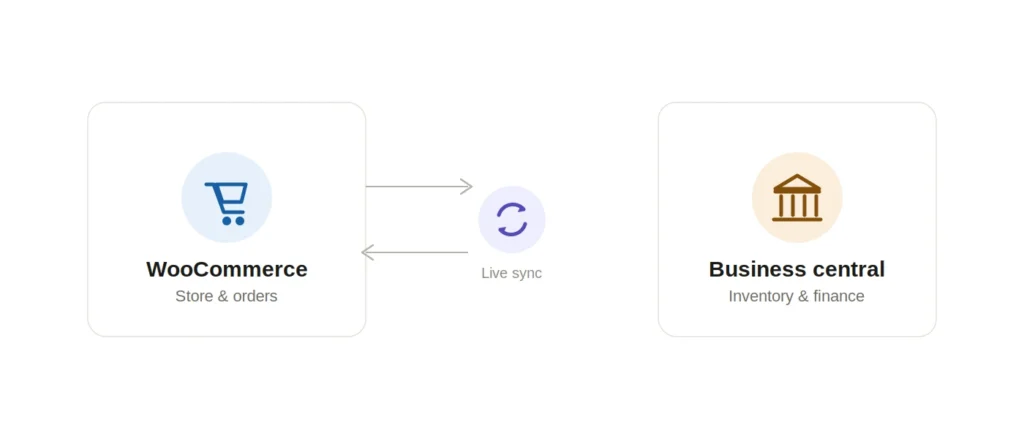
The connector sits between the two, mapping fields so a WooCommerce order lines up with a Business Central sales order, a WooCommerce product lines up with a Business Central item, and so on. Depending on configuration, a dynamics 365 business central woocommerce connector can sync in near real time or on a schedule, such as every fifteen minutes. Most setups support business central woocommerce sync in both directions, so a change made in either system reaches the other without extra steps. Most connectors authenticate with API keys or OAuth tokens rather than a shared login, which keeps access scoped and easy to revoke if a vendor relationship ever ends.
Why Businesses Integrate WooCommerce With Business Central
The benefits show up in daily operations more than in any single feature list. Common ones include:
- Orders move from WooCommerce to Business Central without manual entry, and updates flow back the same way.
- Stock counts stay accurate across every location, so you do not oversell a product that is already gone.
- Customer-specific pricing and discounts set in Business Central appear correctly on the storefront.
- Invoices generate from Business Central and reach the customer without a second system to check.
- Multiple WooCommerce stores can connect to a single Business Central tenant, so you are not paying for a separate ERP subscription per store.
- Financial reports reflect ecommerce activity as soon as it happens, and teams can take that visibility further with WooCommerce to Power BI integration.
- Customer service sees the same order status and stock numbers as the finance team, instead of working from two different screens that disagree.
None of these are exciting on their own, but skip them and you are back to spreadsheets and double-checking every order manually.
How to Integrate WooCommerce With Business Central: A Step-by-Step Overview
If you are researching how to integrate business central with woocommerce, here is what the process usually looks like once you decide to connect woocommerce to business central:
1. Map out your current setup. Note your order volume, number of WooCommerce stores, and any custom fields or workflows already built into Business Central.
2. Enable the right APIs. Business Central’s APIs need to be turned on and permissioned before any third-party service can reach them, and WooCommerce needs REST API keys generated from its own settings.
3. Choose your sync method. Decide between real-time sync, scheduled sync, or a mix, based on how quickly stock and pricing changes need to reach the storefront.
4. Map your fields. Match WooCommerce products, customers, and orders to their Business Central equivalents, including tax classes, shipping methods, and payment methods.
5. Test with real but small orders. Run a handful of live transactions through the connection before switching everything over.
6. Go live and monitor. Watch the first few days of synced orders closely, since small mapping errors surface fast once real customers are involved.
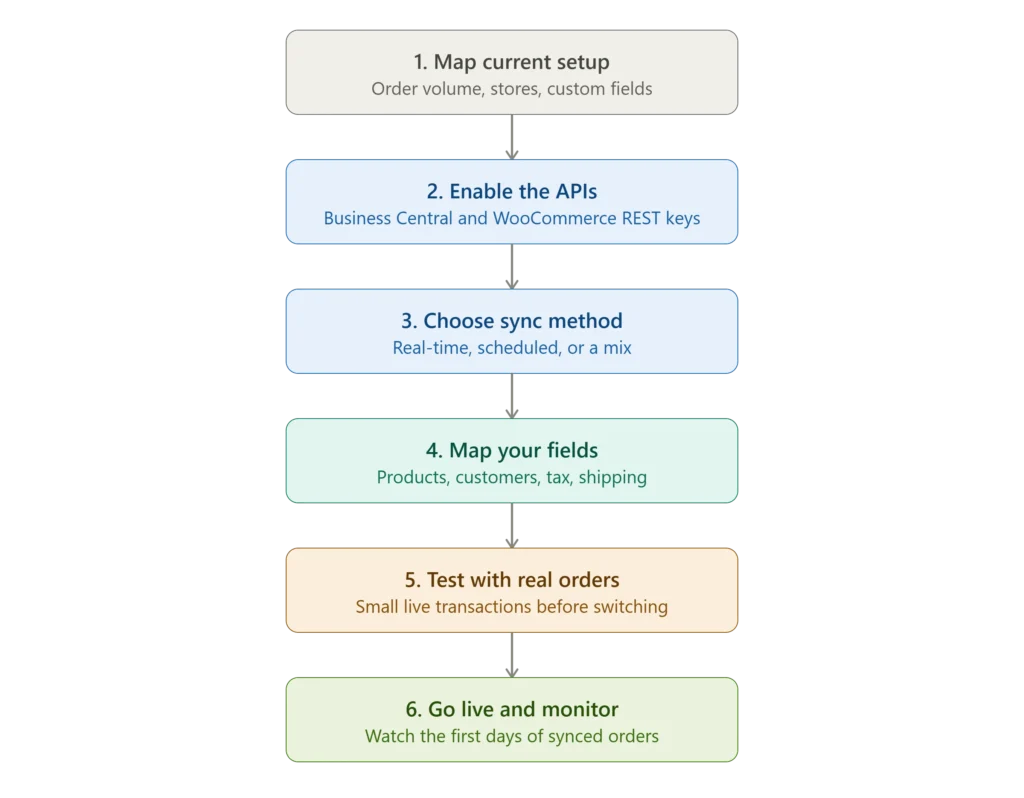
Businesses that skip step five usually end up needing to integrate woocommerce with microsoft dynamics 365 twice: once in a rush, and once again properly after something breaks.
What to Look for in a WooCommerce ERP Integration
Not every woocommerce ERP integration is built the same way, and the differences matter once you are relying on it daily. Look for:
- Two-way sync, not just one-way order exports. Stock and pricing changes in Business Central should reach WooCommerce, and new orders should reach Business Central, automatically.
- Multi-store support, if you run more than one WooCommerce site. A dynamics 365 business central woocommerce connector that handles several storefronts from one Business Central tenant saves on licensing.
- Flexible mapping. Your tax rules, shipping methods, and customer groups are probably not identical to a vendor’s default template, so the mapping needs to be adjustable.
- Real support behind it. A woocommerce business central plugin with no one to call when a sync breaks at two in the morning is a liability, not a feature.
- Clear logs. A connector that surfaces sync errors and order-level history makes troubleshooting far faster than one that fails silently in the background.
This is really an ecommerce ERP integration microsoft dynamics question as much as a WooCommerce one. What you need depends on how Business Central is already configured on the finance and inventory side, not only on what WooCommerce can technically send it.
Common Mistakes and How to Avoid Them
A few mistakes come up again and again with a woocommerce to business central integration:
- Skipping the mapping review. Default field mappings rarely match a real business’s tax rules or shipping setup exactly.
- Treating go-live as the finish line. Sync connections need occasional monitoring, especially after either platform runs an update.
- Ignoring multi-currency or multi-location complexity until it causes a problem. If you sell in more than one currency or ship from more than one warehouse, say so during setup, not after the fact.
- Choosing a connector on price alone. The cheapest option often does one-way sync only, which recreates the manual work you were trying to remove in the first place.
Most of these get caught during the testing step described above. The ones that do not tend to show up later as a customer complaint about a wrong price or an item marked in stock that was not.
DIY Tools, No-Code Platforms, or a Dedicated Connector?
There are three broad ways to approach a business central ecommerce integration, and each fits a different size of business.
Manual exports and imports, moving CSV files by hand, cost nothing beyond staff time, and staff time is exactly what disappears fastest as order volume grows. No-code automation platforms can connect basic fields for a low monthly fee, but they usually stop short of handling multi-location inventory, customer-specific pricing, or high order volumes well. A dedicated connector costs more upfront but handles two-way sync, multiple stores, and complex mapping without extra workarounds. Microsoft builds Business Central specifically for small and mid-sized companies, so a connector aimed at that same market tends to fit better day to day than one designed around enterprise-only ERPs.
Cost depends on your number of WooCommerce stores, order volume, and how much customization your setup needs. Most vendors that specialize in this kind of integration quote based on those factors rather than a flat rate, since a five-store operation with custom pricing rules takes more to configure than a single store with a simple catalog.
Key Takeaways
- A business central woocommerce integration keeps your storefront and your ERP updated automatically, in both directions.
- It works through APIs: WooCommerce’s REST API on one side, Business Central’s REST, OData, or SOAP services on the other.
- The real benefits show up in daily operations: fewer manual entries, accurate stock across locations, and invoices that match what customers see online.
- Setup goes smoother when you map fields carefully and test with real orders before going live.
- Not all connectors are equal. Two-way sync, multi-store support, and flexible mapping separate a solid woocommerce ERP integration from a basic one.
Conclusion
Running WooCommerce and Business Central side by side without a connection works, for a while. Order volume grows, though, and the manual workarounds that covered the gap stop scaling. A proper business central woocommerce integration turns two separate systems into one connected operation, with orders, stock, and pricing that match everywhere a customer or a finance team looks. The technical side is well understood at this point. The harder part is picking a partner who keeps the connection healthy after launch, not only on the day it goes live.
If you are weighing your options, or ready to see one running against your own store data, book a free demo and walk through your specific setup, whether that is one storefront or several, with a team that works in this integration every day.
Frequently Asked Questions
How long does a Business Central WooCommerce integration take to set up?
A single store with standard fields and no BC customisations typically takes 2 to 3 weeks from kickoff to go-live, with most of that spent on field mapping and testing rather than technical connection. Multi-store setups or heavily customised BC environments run 4 to 8 weeks. The connection itself takes hours. Everything else is mapping.
Can Business Central connect to WooCommerce without a paid connector?
Yes. Business Central has a first-party Power Platform connector, and free WordPress plugins exist that ship with prebuilt Power Automate flows for order, product and customer sync. You need a Power Automate Premium licence to use the connectors, and you take on maintaining the flows yourself.
Does the integration support multiple currencies?
Yes. Business Central handles multi-currency natively through Currency Codes and exchange rate tables. The thing to confirm is which system owns the exchange rate. If WooCommerce converts at checkout and BC converts at posting using a different rate, your revenue figures will drift by small amounts on every order.
Can historical WooCommerce orders be imported into Business Central?
Yes, through a one-time bulk import run separately from the ongoing sync. Ask specifically, because some connectors only handle orders placed after go-live. Historical imports also need a decision on whether to post them or leave them as open sales orders, which affects your financial reporting.
How are refunds handled between the two systems?
A refund processed in WooCommerce generates a Sales Credit Memo in Business Central, applied against the original posted invoice. Partial refunds create a credit memo for the refunded lines only. Confirm the workflow with any vendor, because refund handling varies between connectors far more than order creation does.
Do I need developers to maintain the connection?
Not for a managed connector, where configuration and mapping are part of the service. You will need someone technical for two things regardless of vendor: rotating the Entra ID client secret before it expires, and reviewing mappings after either platform ships a major update.
Can one Business Central tenant serve multiple WooCommerce stores?
Yes. A single BC tenant can connect to several WooCommerce storefronts, with each store mapped to its own location, price group or dimension inside BC. Check the licensing, because some vendors charge per storefront connection while others include multi-store in the base cost.
Is real-time sync necessary, or is scheduled sync enough?
Scheduled sync at 15 minute intervals is fine for most stores under a few hundred orders a month. Real-time webhook sync matters when you sell limited stock, run flash sales, or have products where a 15 minute window is long enough to oversell. Inventory is usually the only data type that genuinely needs real time.
What happens if the connection goes down?
A well-built connector queues failed operations and retries, then surfaces anything still failing in an error log. Orders placed during an outage sync once the connection recovers. Ask any vendor what their retry behaviour is, because the alternative is silently lost orders.