

How to Connect Multiple WooCommerce Stores to One Business Central Tenant

The Business Central WooCommerce (BCWC) integration eliminates per-store subscription costs, allowing merchants to map multiple WooCommerce front-ends to a single Business Central tenant without expensive setup fees or custom API development, centralizing inventory, pricing, and fulfillment.
Scaling an e-commerce business rarely means staying on a single website. As operations grow, merchants inevitably need dedicated storefronts for different regions, separate B2B wholesale portals, or distinct niche brands. While spinning up a new WooCommerce instance is relatively easy, keeping the backend data synchronized across all those sites is where the operational nightmare begins.
Inventory gets miscounted, leading to backorders. Customer service teams scramble across multiple WordPress dashboards to find a single tracking number. Financial reporting becomes a manual exercise in exporting and combining messy CSV files.
To solve this, businesses turn to ERP systems. But connecting multiple stores to a central enterprise resource planning (ERP) system often introduces a massive financial hurdle.
Here is how to structure a multi-store integration using Business Central WooCommerce (BCWC) that keeps your data perfectly centralized without punishing your IT budget.
The Traditional Trap: Why Multi-Store Integration Gets Expensive
If you look at the landscape of legacy middleware and standard SaaS integration platforms, you will quickly spot their pricing strategy: they monetize your growth.
Most integration platforms treat every WooCommerce store as a separate “endpoint” or “connection.” If you have one retail store and one B2B wholesale store, you are paying for two subscriptions. If you expand into Europe, Canada, and the UK with localized stores, your integration costs suddenly quadruple, even though all that data is still flowing into the exact same Business Central environment.
Furthermore, many providers charge exorbitant, hidden setup fees just to configure the initial mapping for these additional endpoints. They penalize you for scaling your front-end presence.
The BCWC Approach: Centralized ERP Management Without Per-Store Penalties
The philosophy behind the Business Central WooCommerce (BCWC) integration is fundamentally different: your ERP should be the master of truth, and you should be able to broadcast that truth to as many storefronts as you need.
BCWC allows merchants to connect multiple WooCommerce front-ends to a single Business Central tenant without incurring extra subscription costs per store. You manage the integration from a centralized hub, mapping different store views to specific Business Central parameters (like location codes or dimension tags) seamlessly.
This approach offers three massive advantages:
- Zero Setup Fees: You aren’t charged thousands of dollars just to initiate the connection.
- Infinite Scalability: Launch a new seasonal pop-up store or a new regional domain without worrying about doubling your middleware costs.
- Unbeatable ROI: BCWC currently offers a “Buy 1 Year, Get 1 Year Free” model, effectively cutting your total cost of ownership in half while providing enterprise-grade, multi-store architecture.
Understanding the Multi-Store Data Architecture
When you map multiple stores to one Business Central tenant, the architecture shifts from a simple point-to-point connection to a hub-and-spoke model.
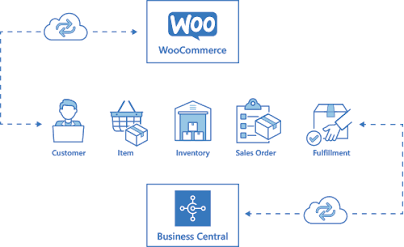
Instead of managing inventory rules in five different WordPress dashboards, Business Central acts as the brain. You can visualize how adding more storefronts impacts your data synchronization using this interactive architecture explorer:
ERP System Architecture
In a proper setup:
- Inventory is pushed from the ERP to the specific stores based on warehouse assignment.
- Pricing (including complex B2B tiered discounts) is pulled from the ERP’s customer cards.
- Orders flow immediately back into Business Central, tagged with the specific store ID so accounting knows exactly where the revenue originated.
Step-by-Step: Setting Up BCWC for Multiple Stores
Configuring this architecture requires precise mapping. Using the BCWC plugin, here is the exact sequence to ensure your data routes correctly across multiple domains.
1. Establish the Primary Connection:
First, ensure the BCWC application is authenticated with your Microsoft Dynamics 365 Business Central environment. You will configure OAuth 2.0 or Basic Auth via the Web Services page in the ERP. This creates the secure pipeline that all your WooCommerce stores will utilize.
2. Assign Unique Store Identifiers:
Inside Business Central, you must designate how incoming orders will be categorized. Create specific Location Codes or Global Dimensions (e.g., STORE-US, STORE-B2B, STORE-UK). This ensures that when an order flows in, Business Central instantly recognizes which front-end generated it.
3. Configure the Multi-Store BCWC Settings:
Install the BCWC extension on your various WooCommerce instances. Within the BCWC settings panel on each store, input the central ERP API credentials, but assign the specific Store ID or Location Code you created in Step 2.
4. Map Inventory to Specific Warehouses:Crucial for regional stores.
If your UK store fulfills from a London warehouse and your US store fulfills from Texas, you must map the inventory sync correctly. In the BCWC setup, link the specific WooCommerce store to the corresponding Business Central Warehouse Location Code. This guarantees that your UK store only displays the stock physically available in London.
5. Sync Customer Data and Pricing Rules:
For B2B multi-store setups, trigger the customer sync. BCWC will pull customer cards and their associated trade agreements (tiered pricing, bulk discounts) into the corresponding WooCommerce store. This ensures a wholesale client logging into your B2B store sees their negotiated rates, while a retail customer on your main site sees standard MSRP.
6. Run End-to-End Test Transactions:
Never go live without testing. Place a test order on Store A and another on Store B. Log into Business Central and verify that both orders automatically generated Sales Orders, that inventory was deducted from the correct warehouses, and that the financial postings reflect the correct currencies and tax codes.
Best Practices for Multi-Store Management
When you bypass per-store subscription costs with BCWC, you free up resources to focus on actual operational efficiency. Keep these best practices in mind as you scale:
1. Master Data Management (MDM)
Never update product titles, descriptions, or base prices directly in WooCommerce. Treat Business Central as the absolute “Master of Truth.” If you change a SKU or a price in the ERP, BCWC will automatically push that update to every connected storefront simultaneously. This eliminates the risk of human error and conflicting data.
2. Handle Tax and Currency at the ERP Level
If you are running stores across different countries, let Business Central handle the heavy lifting. Map your WooCommerce tax classes directly to Business Central tax posting groups. When an order from your Canadian store hits the ERP in CAD, Business Central’s native financial modules will handle the currency conversion and tax liability reporting.
3. Automate Out-of-Stock Protocols
Because multiple stores might be pulling from the same centralized inventory pool, real-time sync is critical. BCWC’s automated inventory sync prevents the “overselling” nightmare. If an item sells out on your B2C retail site, BCWC instantly updates your B2B portal to show zero stock, protecting your customer experience across all channels.
Conclusion
Scaling your digital footprint shouldn’t come with a penalty. Traditional middleware platforms force you to pay for every new digital storefront, eating into your profit margins and complicating your tech stack.
By utilizing the Business Central WooCommerce (BCWC) integration, you can connect an unlimited number of WooCommerce front-ends to a single Business Central tenant without extra subscription costs or hidden setup fees. Factor in the current “Buy 1 Year, Get 1 Year Free” offer, and the decision to centralize your ERP management becomes the easiest ROI calculation your IT team will make all year.
Next Step: To see how this architecture impacts your specific product catalog and warehouse setup, explore our Multi-Store Integration Hub for deep technical documentation on real-time stock routing and automated fulfillment.